Public Windows beta · setup guide
Install and prepare your first session.
RSL Drafter is a Windows app for RAID: Shadow Legends Live Arena. Public build 0.1.5 targets RAID 11.85.5 on Windows 11 x64 with the standard Plarium Play installation. Downloads are public; using the app requires an active beta access grant.
Before you start
This release's documented compatibility is limited to the setup below.
- Windows 11 x64.
- RAID: Shadow Legends installed through standard Plarium Play, build 11.85.5.
- Administrator permission to install and run the app.
- Internet access for the startup version check and account sign-in.
- The installer bundles the .NET 8 and WPF runtimes. No separate runtime, SDK or build tools are needed.
1. Download and install.
The latest public release is RSL Drafter 0.1.5. For a first installation, download RSL-Drafter-Setup-v0.1.5.exe.
When the download finishes, open the installer and complete its setup wizard. Approve the expected administrator prompt, then launch RSL-Drafter.exe or use the installed RSL Drafter shortcut.
For later versions, use the app's update prompt. RSL-Drafter.Updater.exe is the separate updater; the update ZIP and update manifest are used by the in-app updater; they are not first-install downloads.
2. Create an account and activate beta access.
On the beta account page, create an account with a username, email address and password. The hosted identity service sends one email verification link. After verifying your address, sign in to the account page. While beta enrollment is open, the API automatically creates an access grant if its checks pass.
Registration or email verification alone is not a grant; the API is authoritative. If enrollment is paused, no new grant is created until it reopens. Normal signup does not send a separate beta approval or invitation email. Read the account data notice for details.
3. Sign in to RSL Drafter.
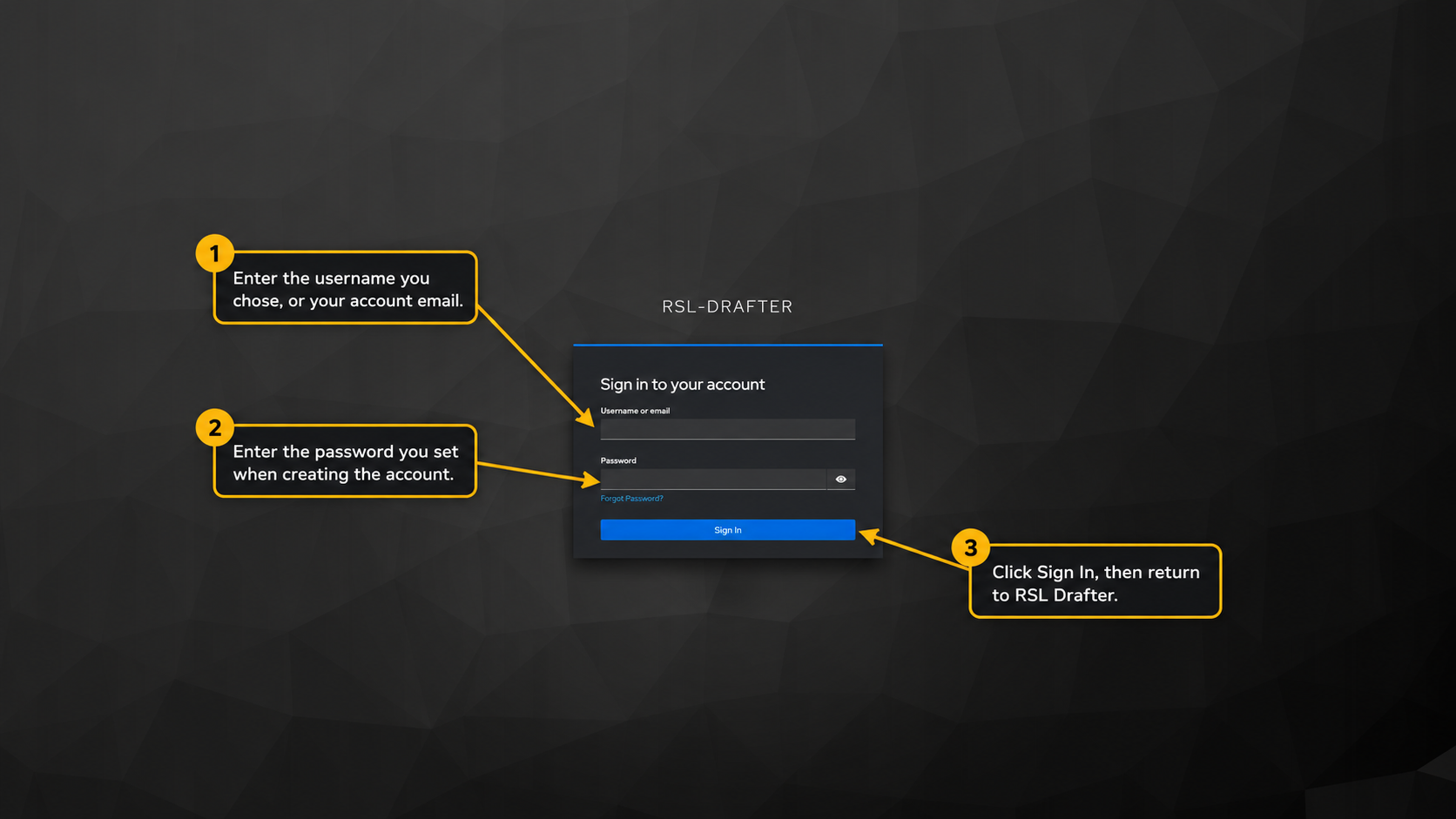
Open the app and choose Sign in. RSL Drafter opens the secure browser sign-in page. Enter your username or account email and password there, never in the desktop app. Finish the browser flow, then return to RSL Drafter.
Select any screenshot to open it full size.
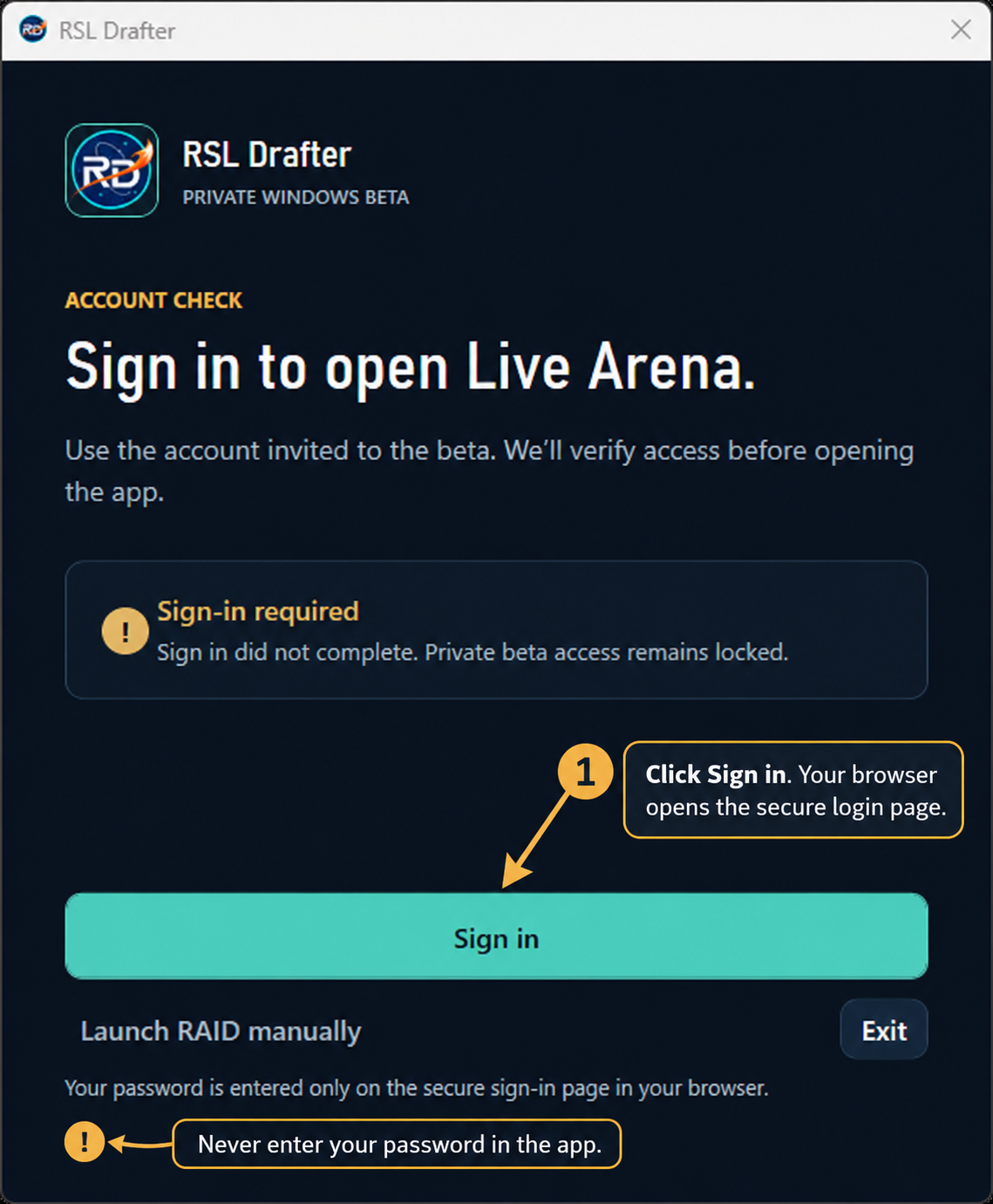
The account-check screenshot contains wording from the former invitation flow. New accounts use the account-first steps above.
4. Open RAID and wait for the connection.
Start RAID through standard Plarium Play, or choose Launch RAID in RSL Drafter. The current app detects the supported RAID process and connects automatically. Wait for the app status to show that RAID is connected. Beta account sign-in and game connection are separate steps; the current interface has no manual Connect button.
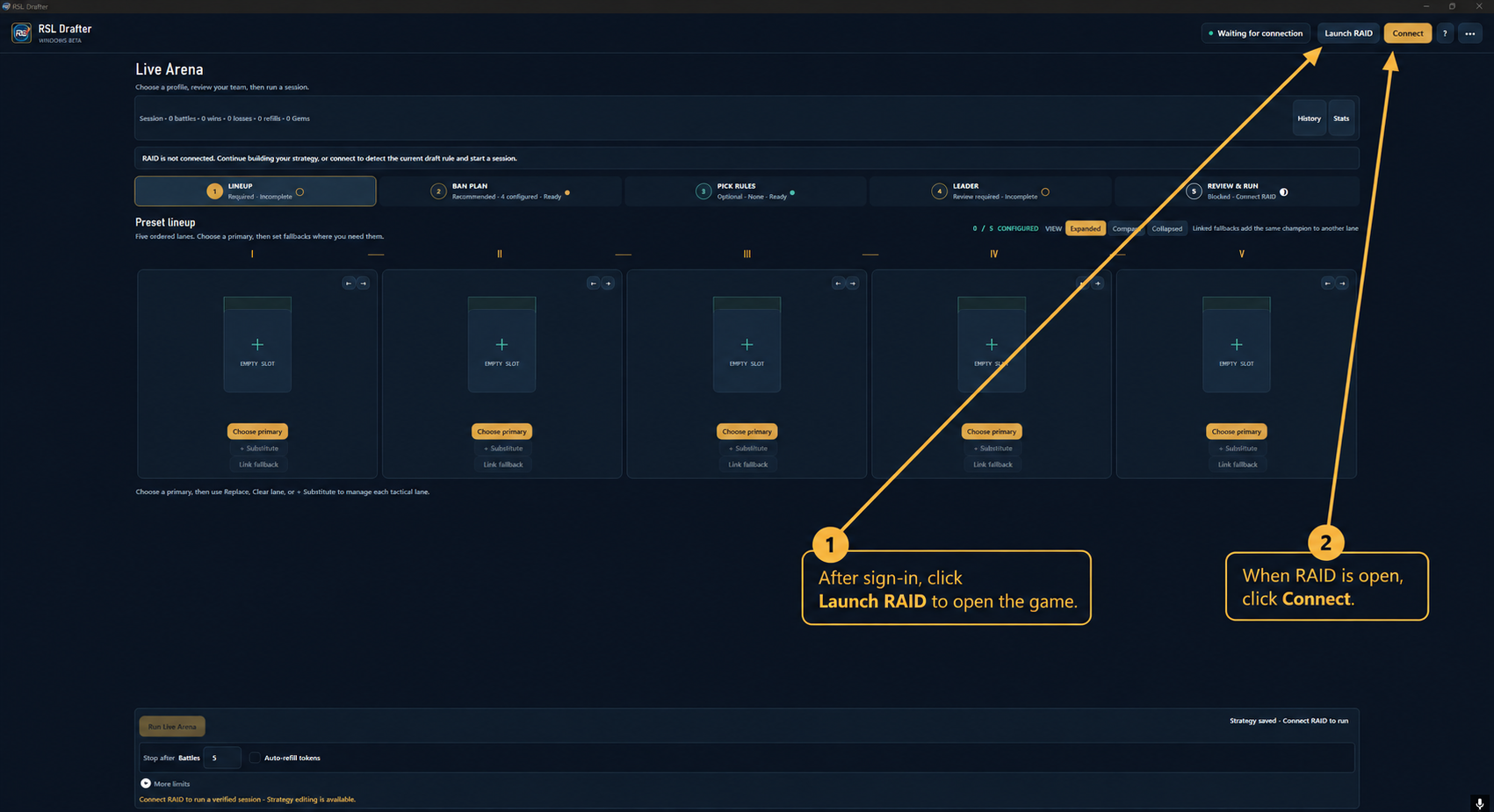
This screenshot shows an earlier interface with a manual Connect button. The current app connects automatically after it detects RAID.
5. Review a one-battle first session.
Review all five primary champion slots and any substitutes. Check your Ban Plan, Pick Rules and Leader Order before starting. Set Run goal to Battles and the limit to 1; leave Auto-refill tokens unchecked.
The public 0.1.5 app also includes a First session setup option. Before a run, open Live Arena's Battle screen in RAID, wait for the app to show a ready connection, and review the team and limits. Choose Run Live Arena only when you are ready.
If a run is active and you need to stop future automatic actions, use the app's Stop automation control. An action already sent to RAID cannot be retracted.
Recovery and support.
- Verification email missing: Check spam or junk and confirm you entered the address you registered with. If the hosted identity page shows a resend action, use it; otherwise contact support. Keep the verification link private.
- Password reset: Start at Sign in and choose Forgot password? on the hosted identity page. The reset message goes to your verified email address.
- Browser sign-in succeeded but the app is still signed out: Return to RSL Drafter, choose Sign in again, complete the browser flow it opens, then return to the app. Never share a browser callback URL or access token.
- Access denied or revoked: Check the status on the account page. If access is revoked or remains denied, contact support; creating another account does not bypass the grant. If the account page offers Retry access activation, use that action.
- Enrollment paused or unavailable: If enrollment is paused, wait for it to reopen. If beta availability could not be checked, wait briefly and retry from the account page. The API decides whether access is active.
Why did the desktop app sign out? The API authorizes one desktop session per account. A newer desktop sign-in can replace the earlier session, and a running app normally detects that within four minutes. Website sessions are independent. This limits concurrent independent desktop sign-ins; it does not prevent every form of account sharing.
For help, contact the team on Discord or visit the GitHub project. GitHub issues are public. Do not post passwords, personal account details, verification or reset links, browser callback URLs, or access tokens. Review and redact diagnostics before sharing them.
For a newer build, use the in-app update prompt or download the installer from the latest release.